Add sameAs Markup to Link TikTok, Instagram and YouTube
Adding the sameAs property to a site's Organization or Person structured data tells Google which TikTok, Instagram and YouTube profiles belong to the brand. The change takes minutes, costs nothing, and connects off-site social profiles to the entity the website already describes, giving Google an explicit link between the site and its social presence.
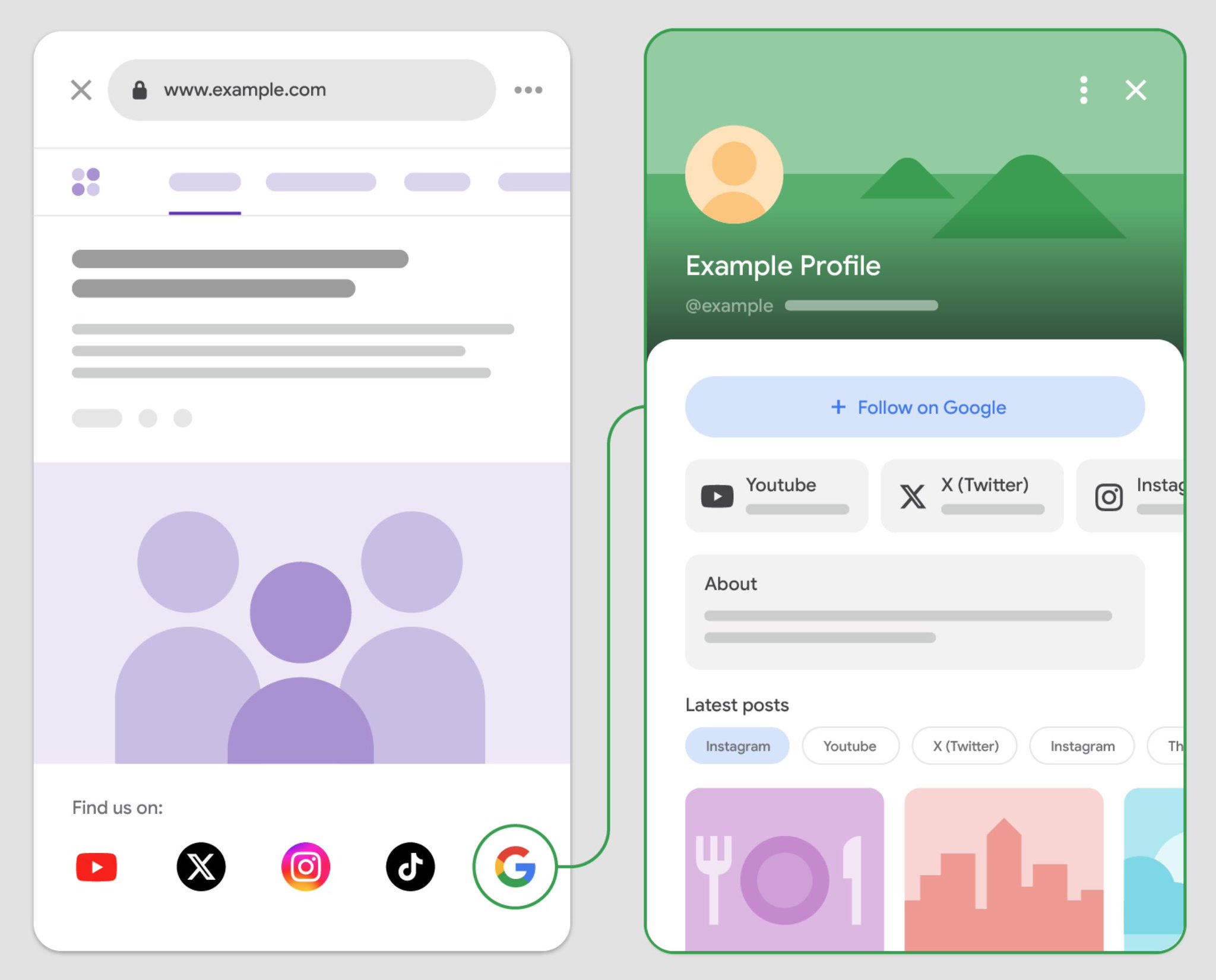
Why this matters
Before you start
- Ability to edit the site-wide head/template or a global JSON-LD include
- Live, public TikTok, Instagram and YouTube profiles owned by the brand
- The canonical URLs of each profile, without tracking parameters
How to apply it
Collect the canonical profile URLs
Write down the exact public URL of each brand profile on TikTok, Instagram and YouTube. Use the plain profile URL (e.g.
https://www.tiktok.com/@brand), not a shortened link, share link or a URL carrying?utm_parameters. Only include accounts the brand actually owns and maintains.Check: Open every URL in a private browser window; each one must load the correct public profile while logged out.
Add a single Organization/Person JSON-LD node with sameAs
In the site-wide head template (layout, header include, or theme functions file), output one JSON-LD block of
@type: Organization(orPersonfor a personal brand) containingname,urland asameAsarray of the profile URLs. If an Organization node already exists, addsameAsto it instead of creating a second node.Check: View page source and confirm exactly one Organization/Person JSON-LD block exists and that `sameAs` is an array of full absolute URLs.
Use absolute, canonical URLs and keep the list short
Every entry in
sameAsmust be an absolutehttps://URL. Do not add trailing slashes, tracking parameters or duplicate entries. Exclude private, regional, inactive or partner accounts; a short accurate list beats a long noisy one.Check: Inspect the rendered JSON-LD and confirm no relative URLs, no query strings and no duplicates are present.
Deploy and validate the markup
Publish the change, then run a representative URL from each template (homepage, a post or product page, a landing page) through Google's Rich Results Test and the Schema Markup Validator. Fix any parsing errors before considering the task done.
Check: Both validators return no errors, and the sameAs array is visible in the parsed output for each template tested.
Monitor the result in Search Console
After Google recrawls the URLs, check the Enhancements/structured data reporting in Search Console and watch whether the brand's social profiles begin appearing in Discover or profile-related surfaces over the following weeks. Record the change date so any movement can be attributed.
Check: The affected URLs are indexed with the new markup (URL Inspection shows it was fetched after the deploy) and no new structured-data errors appear in Search Console.
Source: @isocialwebseo on 2026-10-18 · original post · report an error