Use Google Search Console's AI Search Guidance to Win AI Traffic
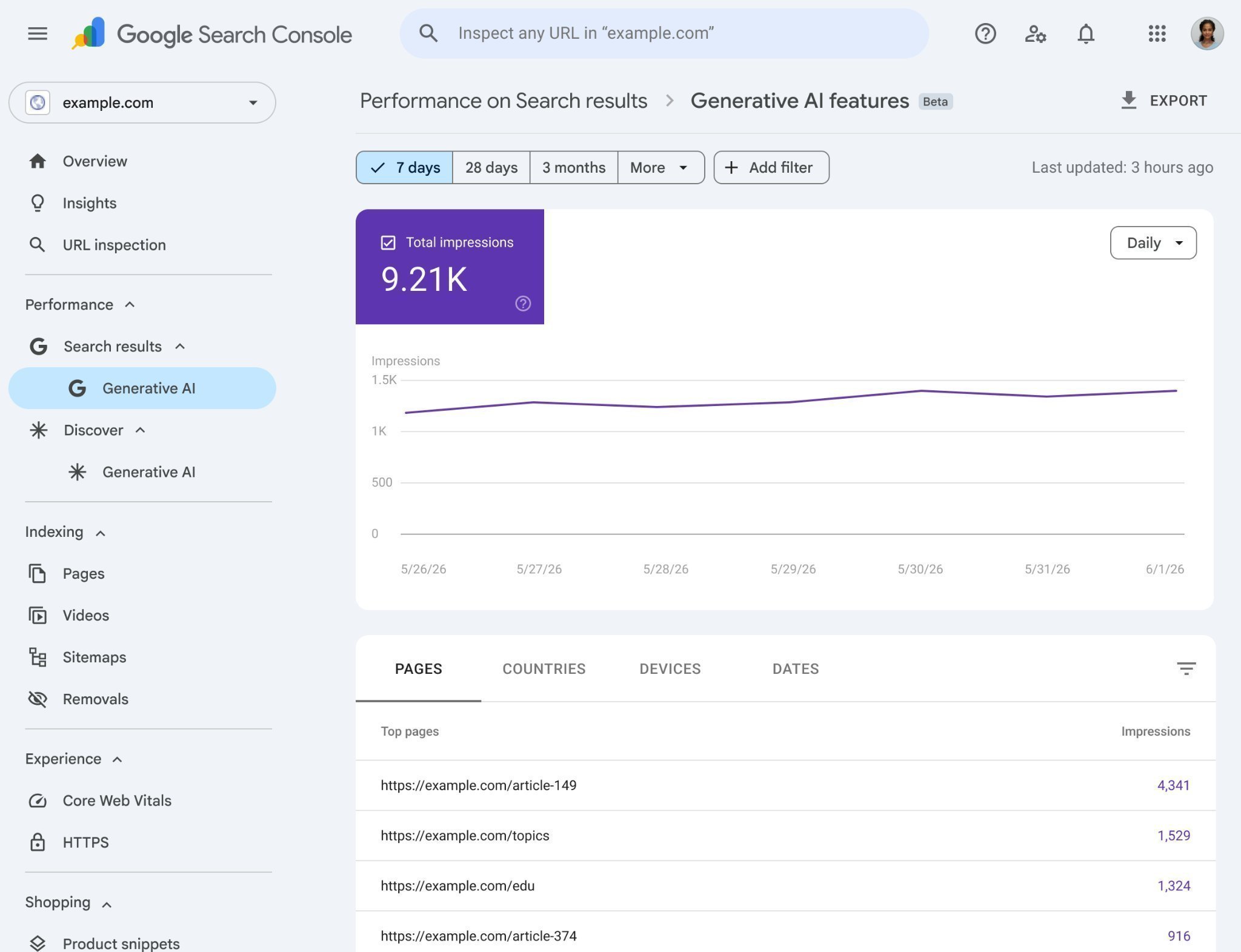
Google now surfaces guidance inside Search Console on how businesses can earn traffic from AI Search, and it reportedly shows whether a given business is included. The tip is to audit each verified property for that guidance, capture a performance baseline, and convert every recommendation into a tracked on-site task with a re-check date.
Why this matters
Before you start
- Verified ownership of the property in Google Search Console
- Access to the site's CMS or codebase to implement changes
- A place to log tasks and change dates (docs, issue tracker, or sheet)
How to apply it
Locate the AI Search guidance in Search Console
Open Google Search Console for each verified property and look through the navigation and any in-product notices or recommendations panels for the AI Search guidance. Note the exact label and location you found it under so the rest of the team can find it again.
Check: You have written down the property name, the label of the section, and the date you saw it.
Check whether your business is represented
Use the view Google provides to see whether your business appears in the AI Search context. Record the answer per property rather than a single site-wide yes or no, since results can differ by domain and subdomain.
Check: Each verified property has a recorded yes/no with a screenshot or note attached.
Capture a performance baseline
Before changing anything, export or screenshot Search Console performance data (queries and pages, last 3-6 months) so you have a before-state to compare against. Store it somewhere versioned so it cannot be overwritten.
Check: A dated baseline file or export exists for every property you plan to act on.
Turn each guidance item into a task
Take every recommendation Google lists and rewrite it as a concrete task: what changes, on which template or URL group, and who owns it. Vague items like 'improve content' should be broken down until someone could start today.
Check: Every guidance item maps to at least one task with an owner and an affected URL or template.
Implement and log the changes
Ship the changes on-site (content, markup, structure, or access rules as applicable) and log the deployment date next to each task. Deployment dates are what make later comparison meaningful.
Check: Each completed task has a date and a link to the change or commit.
Re-check Search Console on a schedule
Return to the same Search Console view at 30, 60, and 90 days. Note whether the guidance changed, whether your business is still represented, and how the numbers compare to your baseline.
Check: A comparison table exists with baseline versus 30/60/90-day figures and a short note on what changed.
This happens outside your codebase
Work through the steps above on the named site or dashboard, then record the result in your agent session. There is no repository edit for this tip.
Source: @alexgroberman on 2026-10-18 · original post · report an error