Publish a Chrome extension to earn a branded store listing
Build a small browser extension that fits your product, publish it to the Chrome Web Store, and make sure the listing's website field points at your domain. The result is a branded page on a high-authority platform, a link to your site, referral traffic, and one more place your brand appears in search.
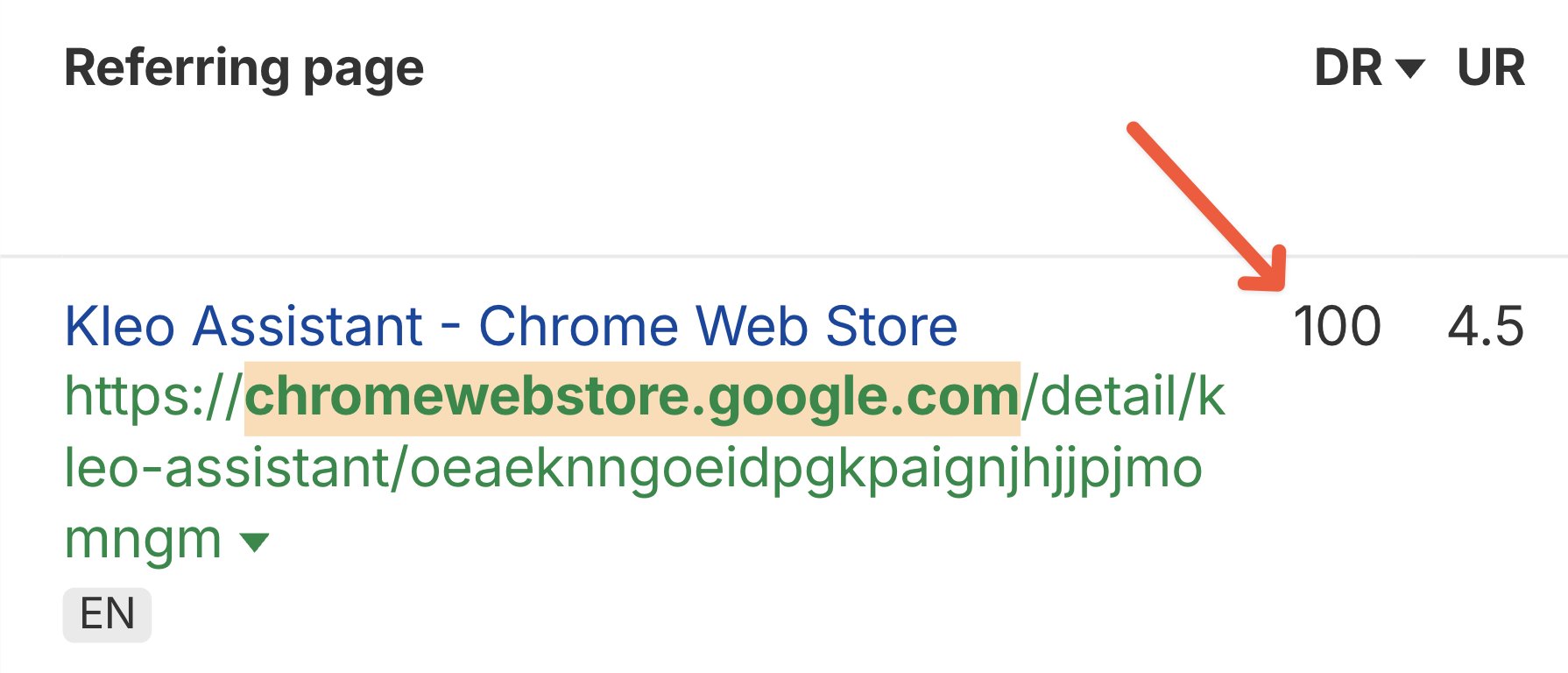
Why this matters
A simple extension gives you a Chrome Web Store listing that links back to your site.
Before you start
- A Google account for the Chrome Web Store developer dashboard
- A working extension build for Chrome
- Access to your site's analytics to track referrals
How to apply it
Choose one small job the extension does
Pick a single task your audience already does manually and that connects to your product, so the extension has a reason to exist beyond the listing.
Check: You can describe the extension's one function in a sentence and name the audience it serves.
Build the extension with a minimal manifest General best practice
Create a Manifest V3 extension with the smallest permission set the feature needs, and set the homepage_url field to your site so the installed extension points back to you.
Check: chrome://extensions loads the unpacked extension without errors and the manifest shows only the permissions the feature uses.
Fill in the listing's website field General best practice
In the developer dashboard, complete the store listing with an accurate name, description and screenshots, and put your site URL in the website/homepage field plus a support URL.
Check: The published listing page shows a website link whose href is your domain.
Submit for review and publish General best practice
Upload the package, complete the developer verification the dashboard requires, and submit; address any review feedback about permissions or metadata.
Check: The developer dashboard shows the item status as published and the public listing URL resolves.
Link to the listing from your site General best practice
Add a link to the Chrome Web Store listing from a relevant page on your site, such as a tools or integrations page, so visitors and crawlers can find it.
Check: The page on your site contains an anchor whose href is the chromewebstore.google.com listing URL and the link returns 200.
Measure referrals General best practice
Tag the listing's outbound links or check your analytics for traffic whose source is the Chrome Web Store, then compare installs and conversions over the first weeks.
Check: Your analytics referral report lists chromewebstore.google.com as a source, or the campaign-tagged landing page shows sessions.
This happens outside your codebase
Work through the steps above on the named site or dashboard, then record the result in your agent session. There is no repository edit for this tip.
Source: @jakezward on 2026-10-18 · original post · report an error